
Manage applications and Callbacks:
WATCH VIDEO TUTORIAL >
SEARCH JOB BOARD
Jobs > All Jobs:
Review all jobs posted to find and filter for jobs that match your priorities. Use the filter to filter for:
Roles: Skills/Roles that interest you.
Location:
Characteristics: Traits and other characteristics
Affiliations: Contract Type, Union Status
Click SEARCH to show the job posts that match your filter.
Favorite Jobs:
Tap the STAR icon to favorite posts as you review to return to later. Then you can tap the FAVORITES folder to see all together.
View Details:
Tap VIEW DETAILS to review the additional information about the job posting.
Roles: Open the detail for each role to learn about specific details for each role.
SUBMIT APPLICATIONS
When you see a job and a role you’re interested in, tap on SUBMIT button for the role you are interested in.
CUSTOM FORM: Some jobs may have a custom form with their application process. Fill out the form which will go into your application as they consider you for the role.
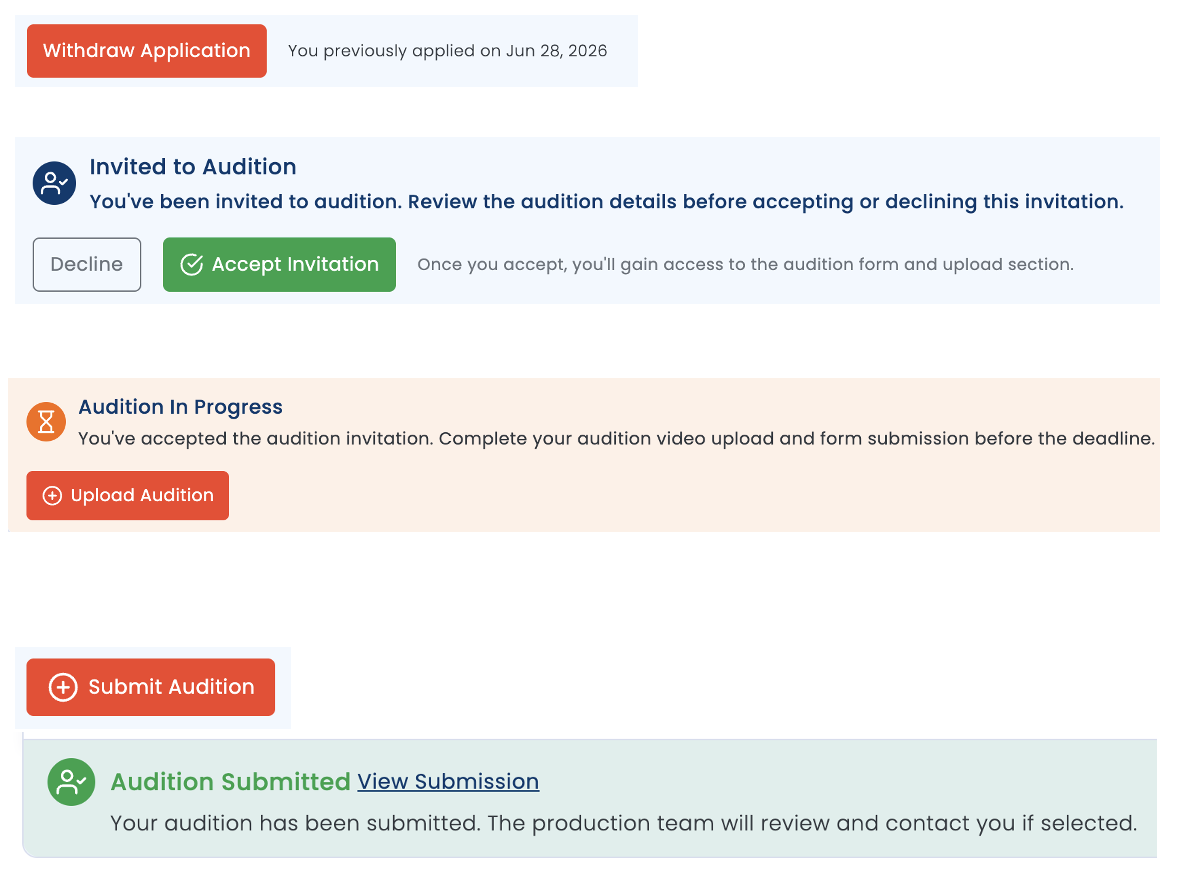
APPLICATION TRACKING:
Once you have submitted your interest, you can track the progress of each application.
Withdraw Application: You can withdraw your application at any time.
Accept/Decline Invitation: Once you have read the details of the invitation you can choose to accept or decline the invitation to submit materials.
Audition in Progress: You have accepted the invitation and the team is awaiting the materials to be uploaded.
Submit Audition: Begin the upload of the materials.
Audition Submitted: You have submitted the materials and can view the materials uploaded at any time.
If your agent submitted you on the project, they will be notified of any status changes.
How do I know if my agent submitted me already?
You can only be submitted ONCE for each role. Your agent should submit your name and when that occurs you cannot apply again. You will see their tag next to the application button when they have submitted you.
Discuss with your representative how they prefer to manage applications. Usually, it’s a good idea to give the agent the first 24 hours on a workday to submit you. After that time, if you have not been submitted, you could choose to submit yourself. This should be discussed with your representation.
If your Agent/Manager submitted you on the project they will also receive notifications of each step of the status.
AGENCY SUBMISSIONS
Agent Hub > Submissions:
On your AGENT HUB page you can see and track all submissions.
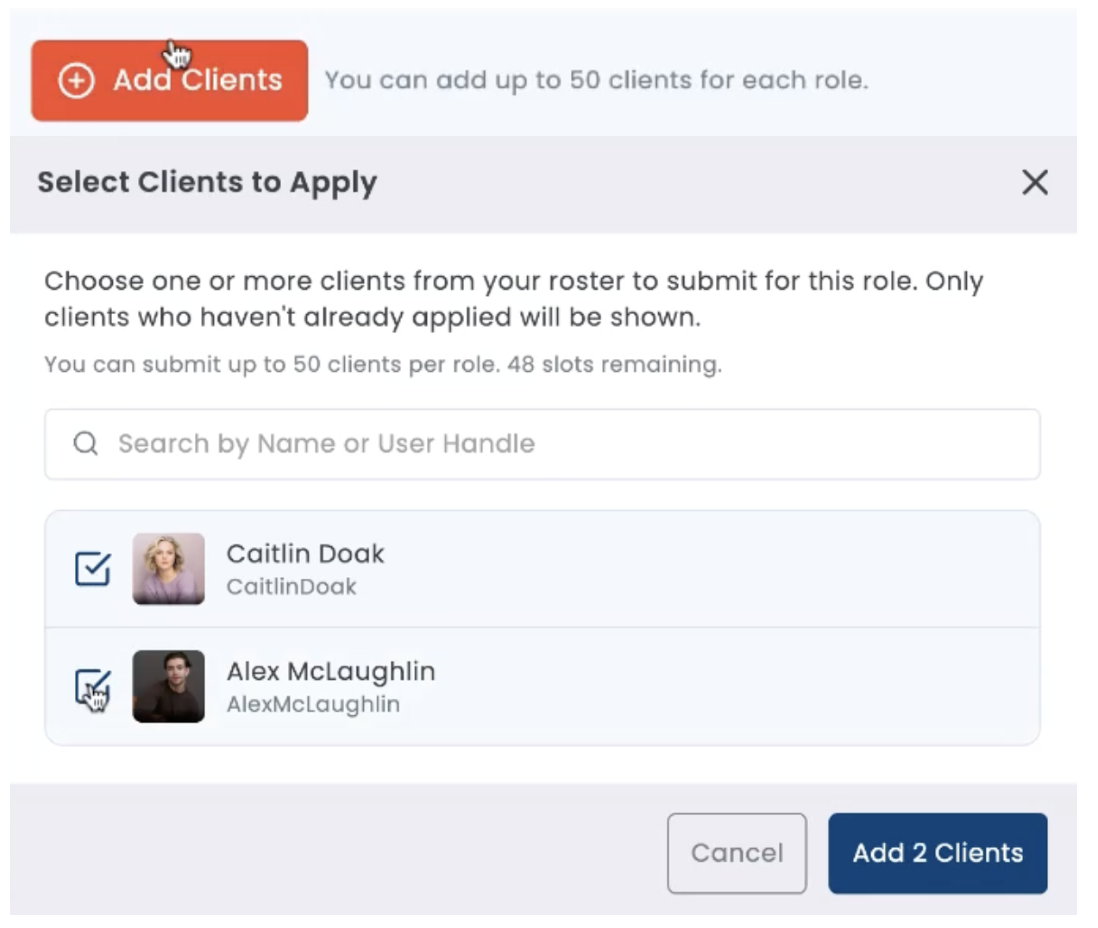
SUBMITTING MY CLIENTS:
Go to the JOB BOARD: Jobs > All Jobs:
Review all breakdowns and submit your clients from your roster.
ADD CLIENTS > Select Clients from your roster > ADD CLIENTS
When you have submitted a client, a tag appears next to their name to inform casting that they are your client.
TRACKING PROGRESS:
Agent Hub > Submissions
Here you can see the status of each application. When your client receives an invitation to submit, you and your client will be notified at the same time. You or your client can accept or decline the invitation, and then you can track when your client has uploaded the materials.
APPLICATION STATUS:
Track the status of each applicant within each job. The status appears connected to their application, color coded to make it easy to see.
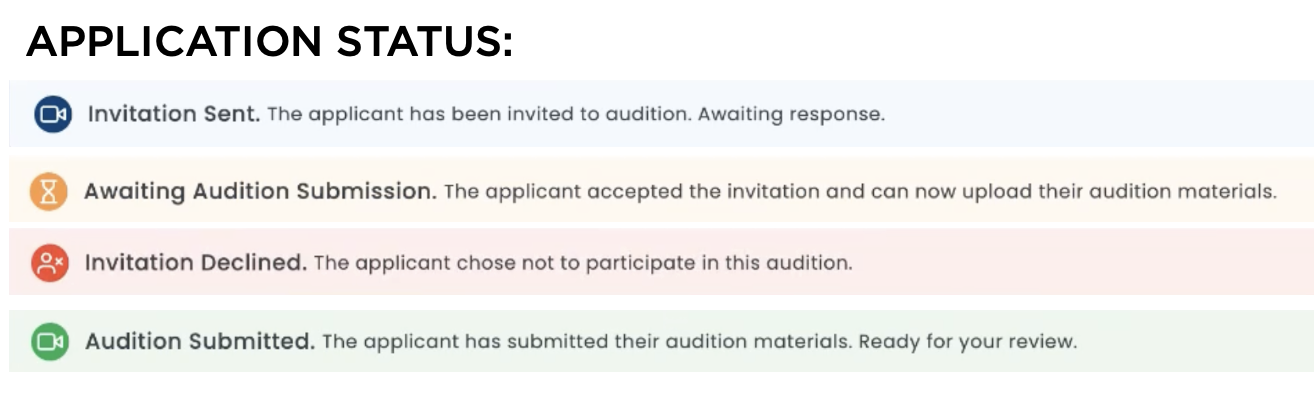
Invitation Sent: This person was invited to audition, received the audition instructions. Awaiting response.
Awaiting Audition Submission: They have accepted the invitation but not yet submitted materials.
Invitation Declined: Applicant chose not to participate in the next steps.