
Manage Applicants to your Post:
WATCH VIDEO TUTORIAL >
APPLICANT DASHBOARD
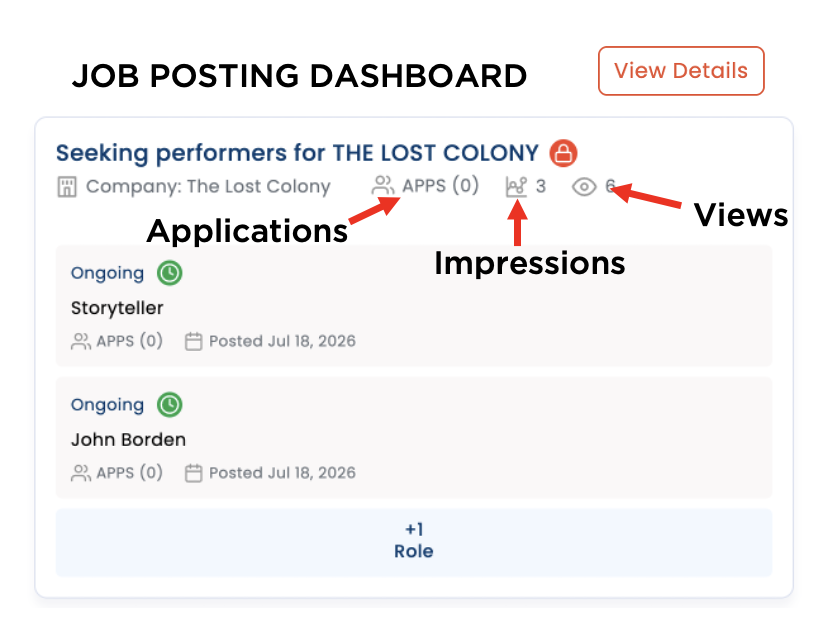
Jobs > Hiring Company: Posted Jobs
Applicant Overview: View how many applications have been received, how many times your URL has been viewed,
Applications: Tracks how many applications have been received
Impressions: Number of impressions of the posting
Views: Number of views of the job post
View Details: Click to open the job posting to manage the post
MANAGE APPLICANTS:
Jobs > Posted Jobs > Post > Manage Applications
From the Application Management page, you can view all applicants for all roles, sort applicants to groups/folders, manage collaborators for the project.
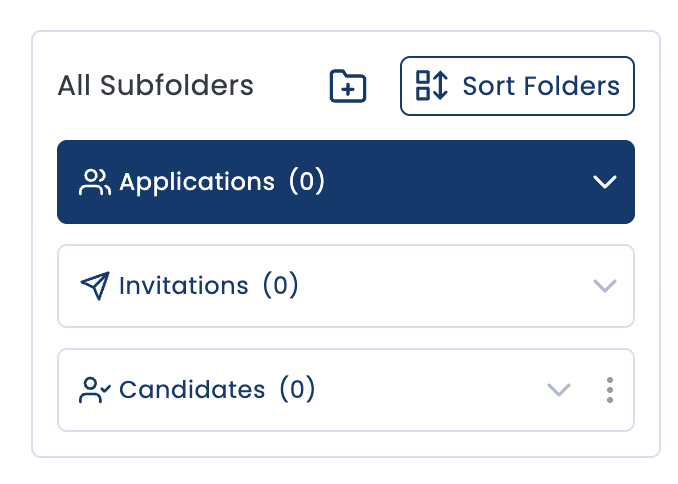
MOVE APPLICANTS TO GROUPS (FOLDERS):
There are three default folders in your project and a sub-folder for each role in the project:
Applications: Profiles for all those who have applied.
Invitations: Profiles you have sent an invitation to audition.
Candidates: Profiles you place as a candidate for each role.
SUB-FOLDERS FOR EACH ROLE:
Each folder has a sub-folder for each role in the job post so you can manage and sort profiles into appropriate folders.
CREATE ADDITIONAL SUB-FOLDERS:
You can add as many additional folders you wish to have to help you sort the project.
Click the + icon and enter the name of the new sub-folder you wish to add. Once added it will appear in the list on your folder list.
SORT FOLDER ORDER:
Tap ‘Sort Folder’ to drag the order of the folders (and accompanied sub-folders) to your preferred order. Then click ‘Save Order.’
VIEW OPTIONS:
View applicants from several options:
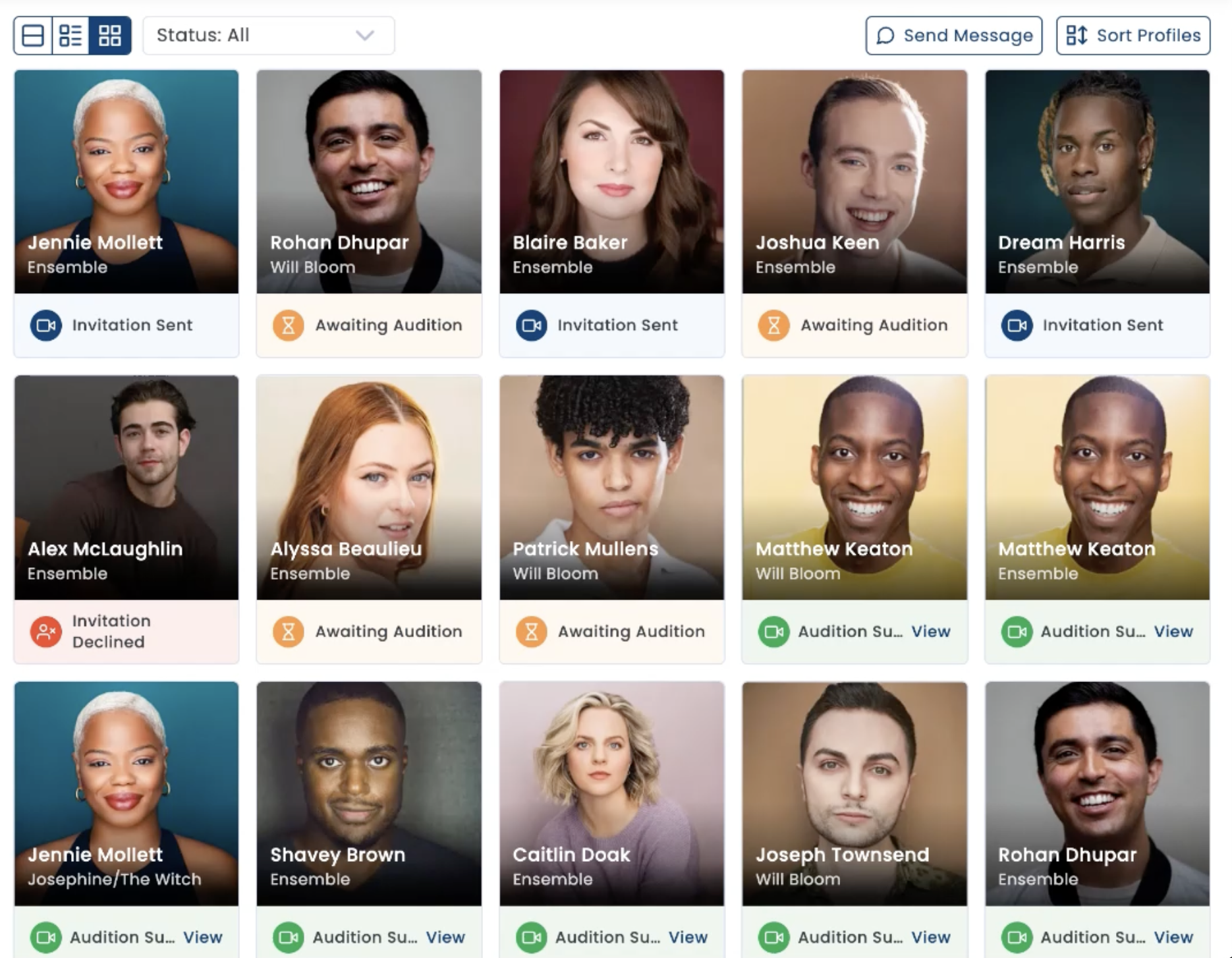
Grid View: This shows thumbnail image of each applicant in a grid showing:
Headshot
Name
Role applied for
Status
This view makes it easy to see more applicants at the same time.
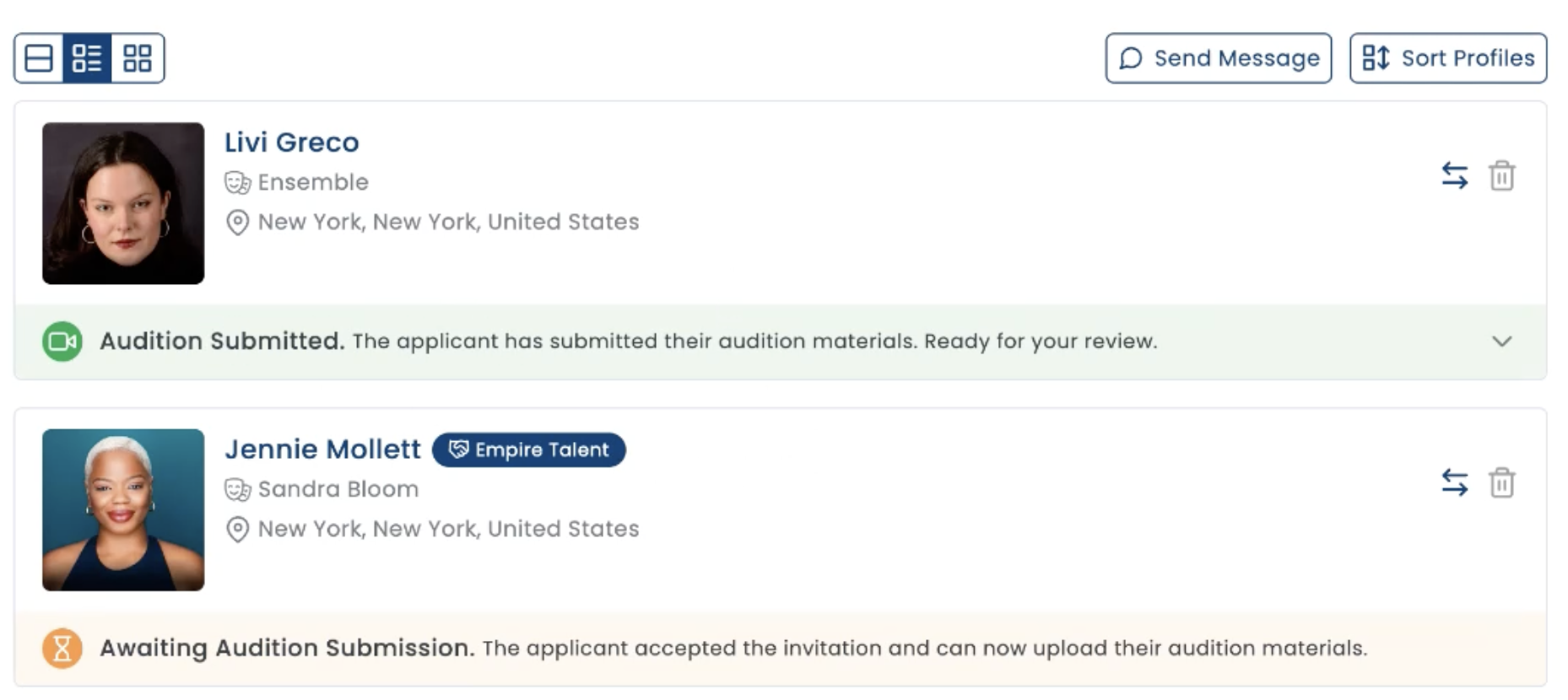
Compact View: This shows applicants in a compact view showing
Headshot
Name
Agent (if submitted through agent)
Role submitted for
Location
Status
Uploaded Materials
This view simplifies the management of each profile for re-arranging and sorting.
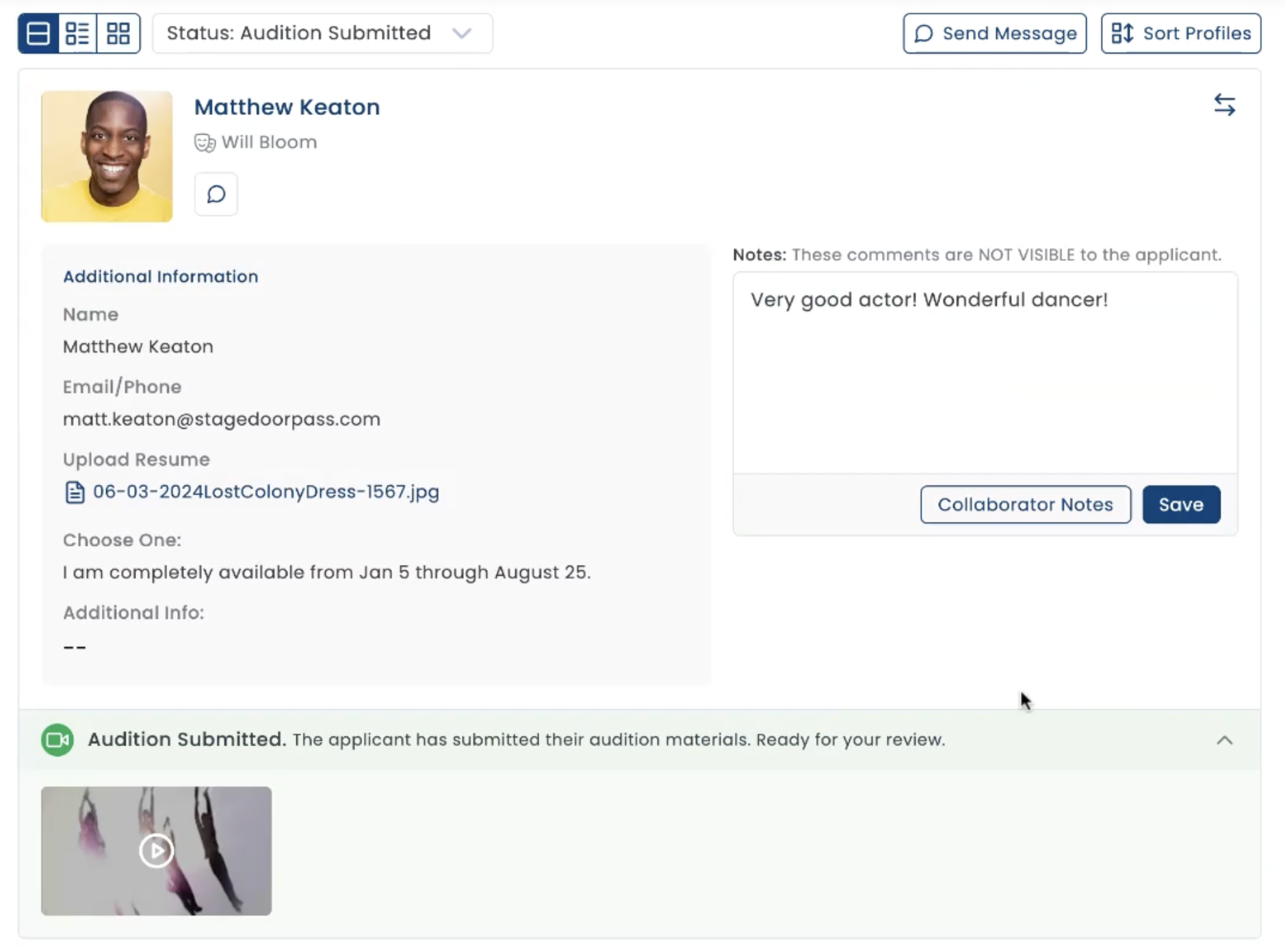
Full View: This view shows the full application including:
Headshot
Name
Agent (if submitted through agent)
Role
Location
Status
Custom Form Answers
Private Notes
Submitted Materials:
This view gives you full access to all answers from the form, uploaded materials, to be able to see everything at the same place.
Sort Applicants:
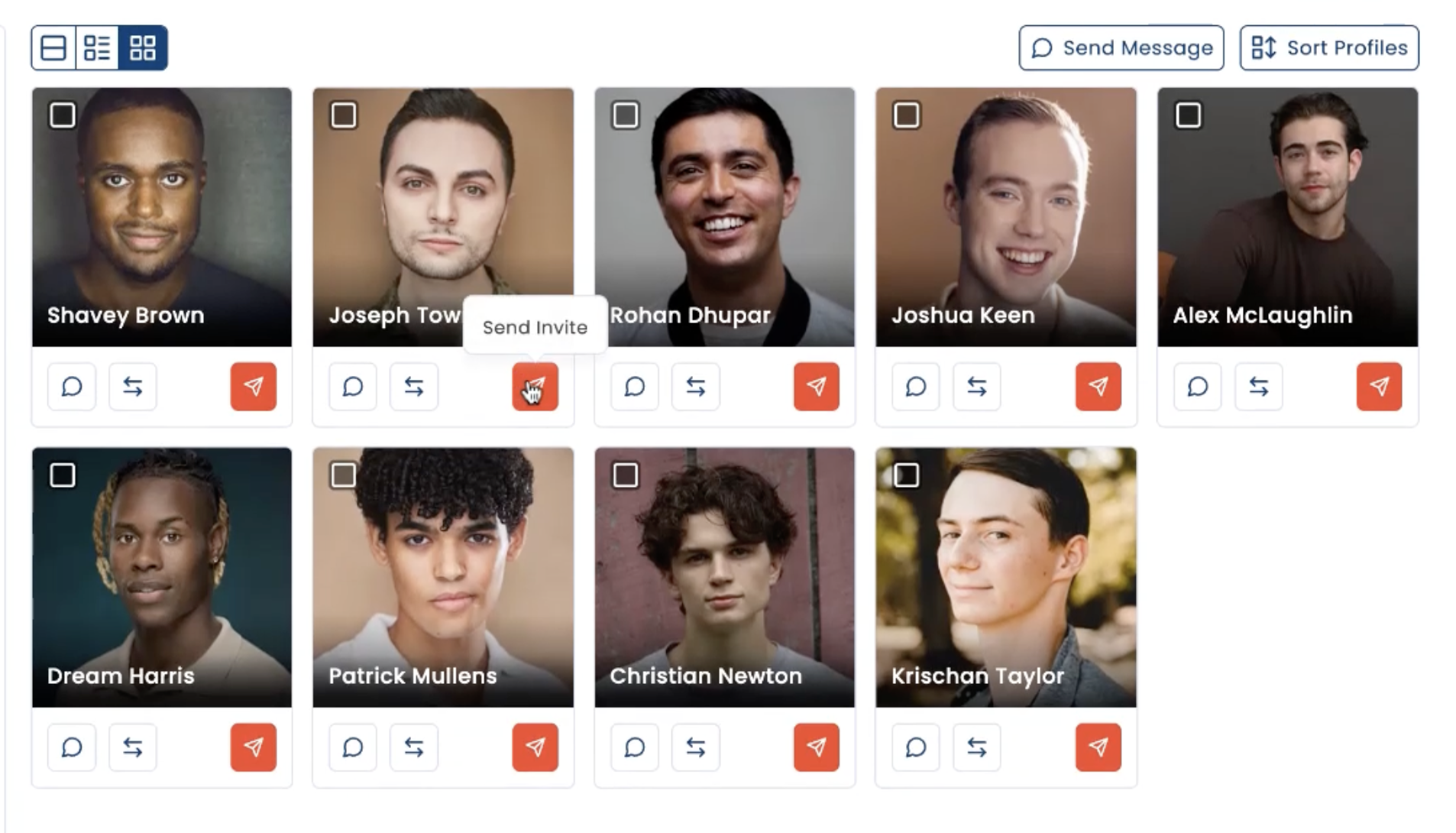
Move applicants to desired folders as you review them.
Invite to Submit:
As you receive applications, they will appear in the APPLICATION FOLDER where you can choose to send them an Invitation to Submit.
This will create a private link for each candidate where they can see the audition information and additional instructions provided only to those who are invited. This is ideal for links to audition materials, instructions, etc.
You can send invitations one at a time by tapping the invitation link on each profile, or select all the profiles you wish to invite and send an invitation to the entire group.
When you send an invitation to a profile, they are automatically moved to the INVITED folder, leaving only those who have either not been reviewed yet or who you have passed on.
PRO TIP: It’s a good idea to move anyone you are no longer considering into a ‘PASS’ folder so you can leave space for any new applicants to review as they come in.
Move an Applicant to a Folder:
Tap the MOVE ICON (on the right side of the applicant) > Choose the folder/sub-folder where you wish to move them.
This will. move their profile to the role where you are considering them and begin to coordinate your callbacks and next steps.
Sort Profile Order:
Within any folder or sub-folder you can re-organize the order in the folder. Tap ‘Sort Profiles’ and drag the profiles into the desired order > Click ‘Save Order’. This can be useful when coordinating callbacks, placing actors into the order they will be coming into the room, making it simpler to review candidate details.
APPLICATION STATUS:
Track the status of each applicant within each job. The status appears connected to their application, color coded to make it easy to see.
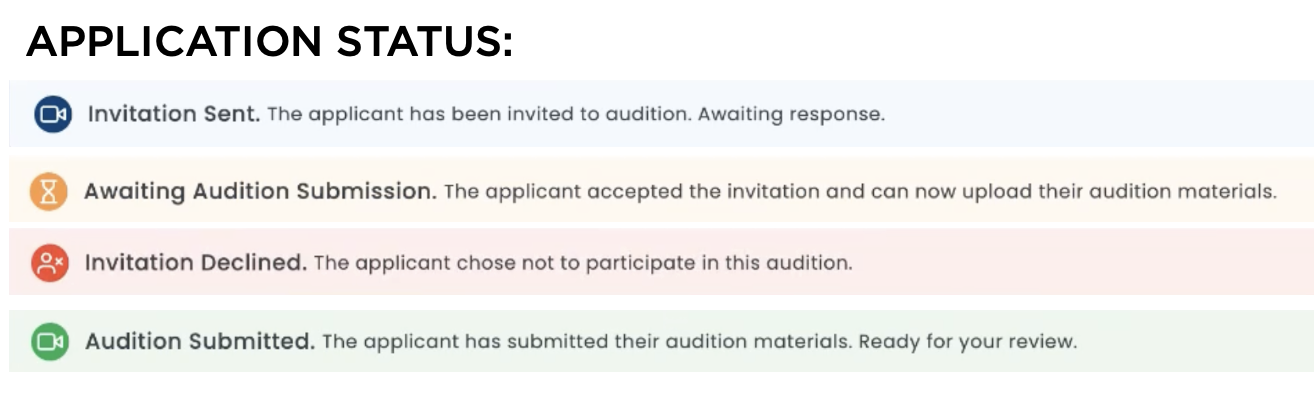
Invitation Sent: This person was invited to audition, received the audition instructions. Awaiting response.
Awaiting Audition Submission: They have accepted the invitation but not yet submitted materials.
Invitation Declined: Applicant chose not to participate in the next steps.
AGENT INTEGRATION:
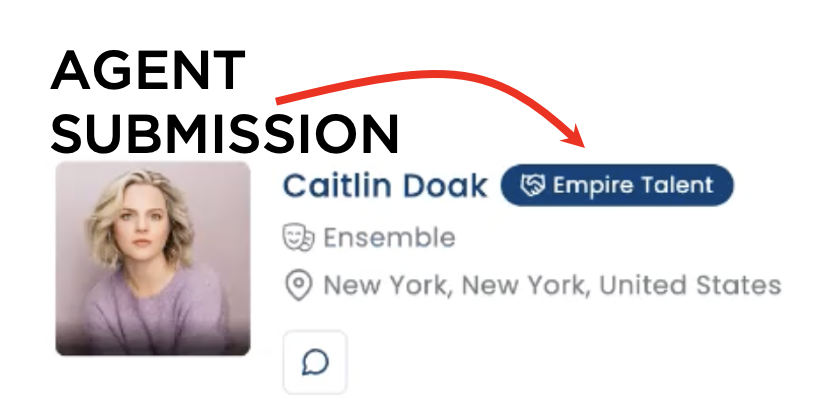
When an agent or manager has applied on behalf of the candidate, you will see an icon of the agent next to the candidate’s name, ensuring they help to manage the process.
Audition Invitation: When you send an audition invitation, both the candidate AND the rep are notified, allowing the candidate to accept or decline.
Material Submission: When the candidate sends in the materials, the agent/manager is notified simlutaneously.
Messaging: When agents have sent application, any messages sent will go to the manager/agent.
MESSAGING:
You can send a message to the applicant by clicking the message icon in their profile. For those applicants who have been submitted through agent or manager, messages go to the representative.
SEARCH PROFILES:
You can search for names in your application folder by typing their name into the search bar and then select which folders they may be in.
PRIVATE NOTES:
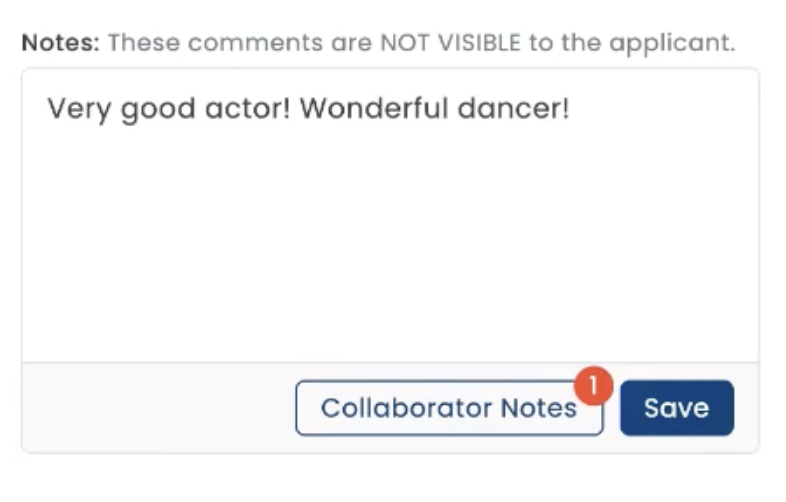
Make private notes on each candidate to help remind you about the applicant. These comments are NOT VISIBLE to the applicant.
The note section is on the right side when in full view where you can enter and save your comments. These notes remain with the applicant only within this job application. They can be seen by other collaborators you ask to join your project.
COLLABORATION:
You can invite other members of your team to collaborate on the project. From within the project, click ‘MANAGE COLLABORATORS’.
Choose the type of access you want each one to have:
Manager: A manager has ability to move candidates from folder to folder, and make notes, add other collaborators to the project.
Collaborator: A collaborator can make notes on the candidates, but not move from folder to folder.
To view your collaborator’s notes, click on COLLABORATOR NOTES which will open a window to show yours and your collaborator’s notes. A red notification will show that there are other comments from collaborators to view.
Remember to save your comments, which then make it possible for your collaborators to see your notes.